
Binance API Key Setup
Create a Binance API key to connect your account for automated futures trading.
Antes de começar
- A verified Binance account with KYC completed
- Two-factor authentication (2FA) enabled
- Futures account must be activated (open a Futures tab at least once)
Etapas de configuração
1
Sign Up or Log In
Go to Binance.com and sign up for an account if you don't already have one. Complete the KYC verification process. If you already have an account, simply log in.
2
Navigate to API Management
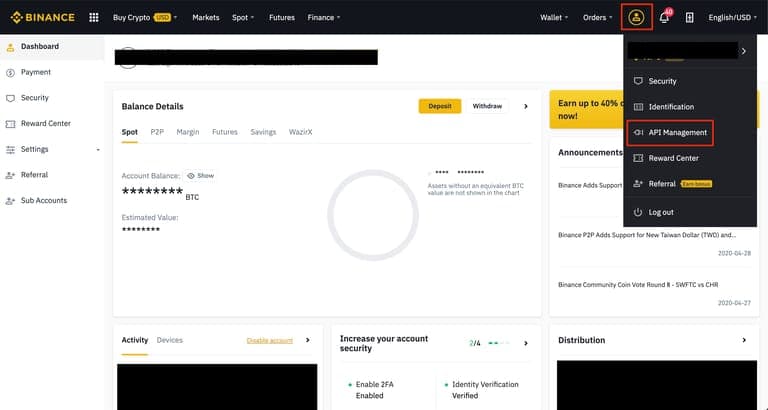
Hover over your profile icon in the top-right corner of the Binance dashboard. From the dropdown menu, select "API Management".
3
Create API Key
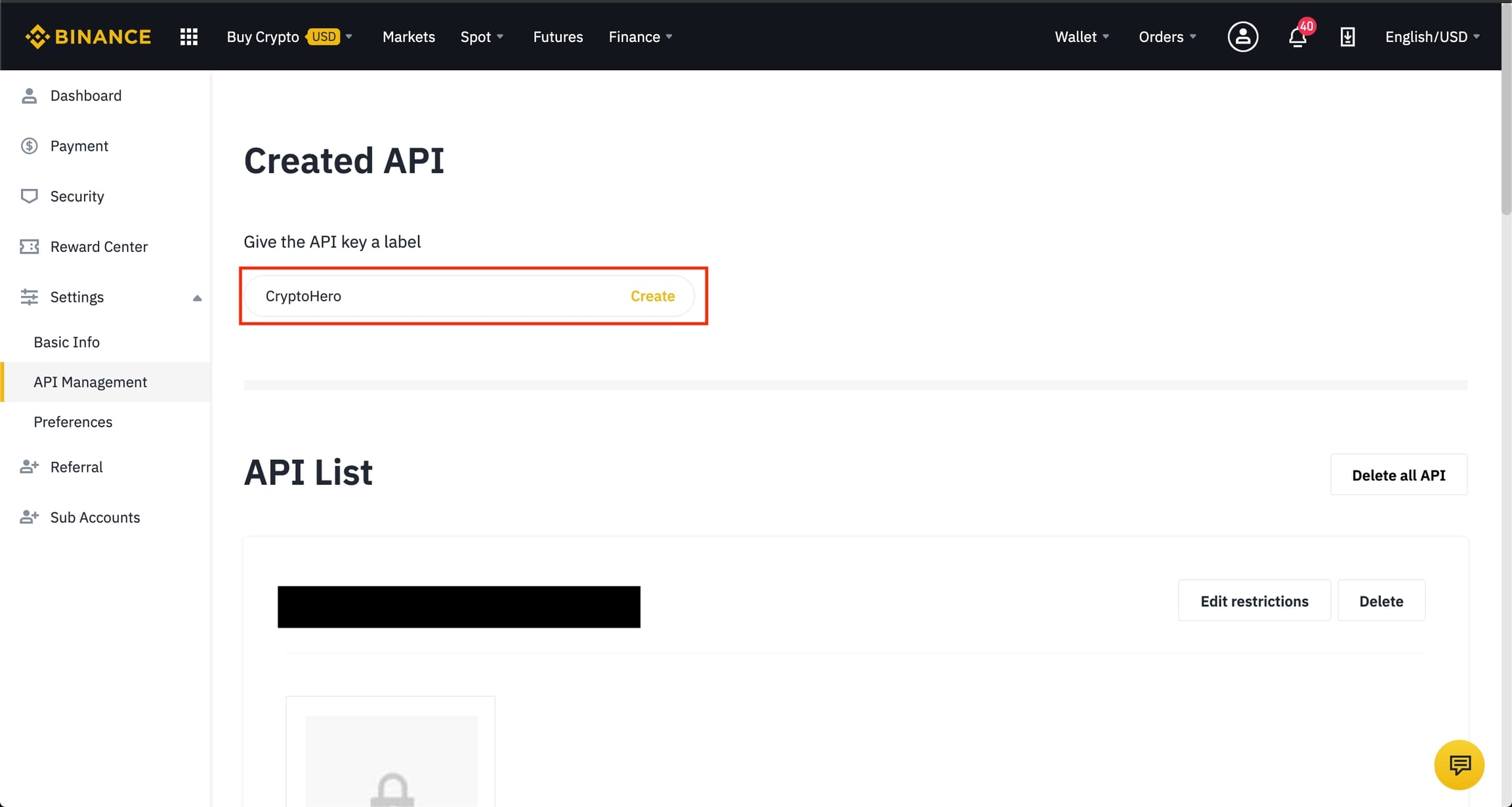
Click "Create API" and select "System generated". Enter a label for your API key (e.g., "10Quant"). Complete the security verification as prompted.
4
Confirm via Email
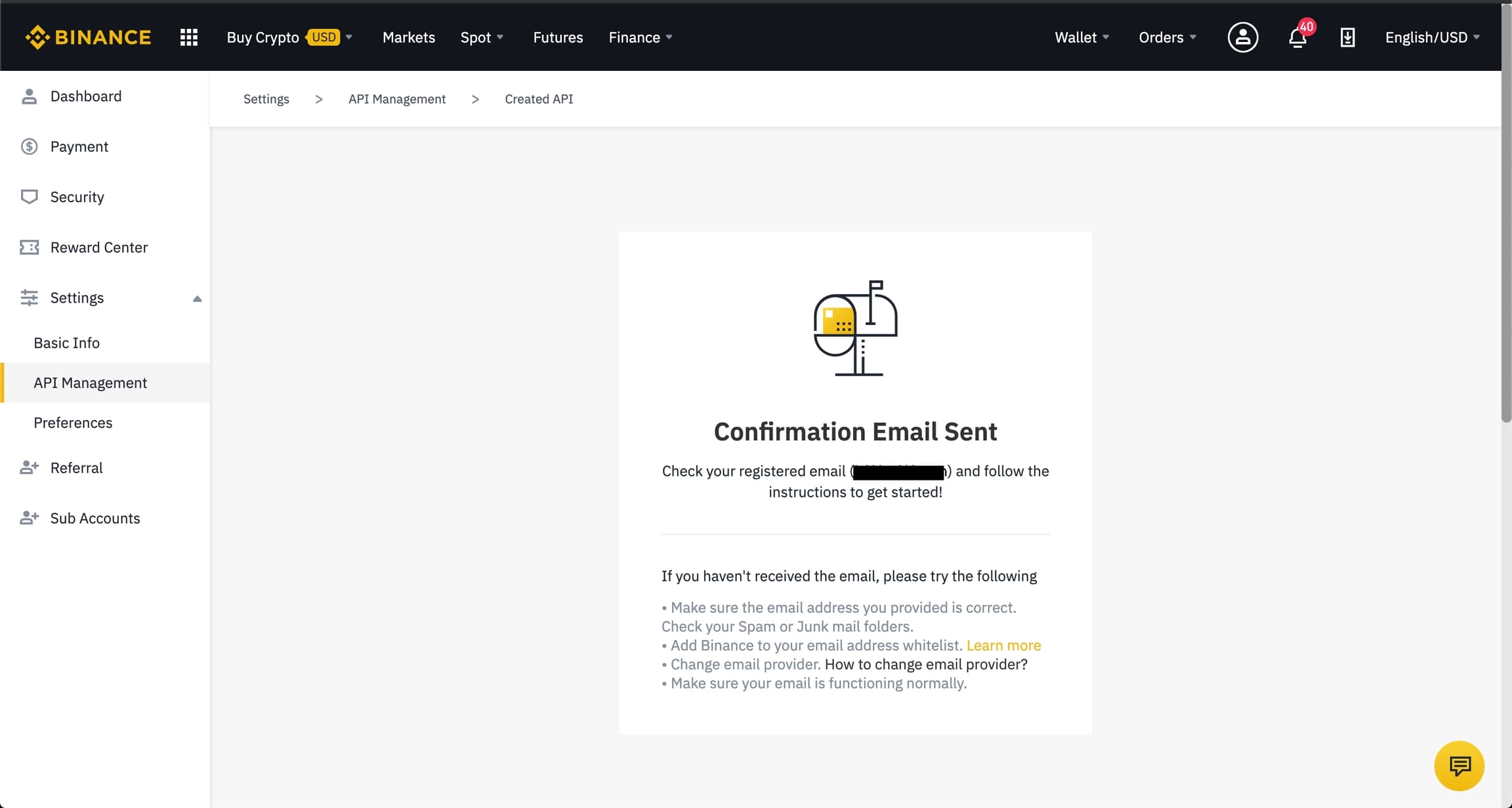
Binance will send a confirmation email. Check your inbox and click the confirmation link to proceed with the API key creation.
5
Copy Your API Keys
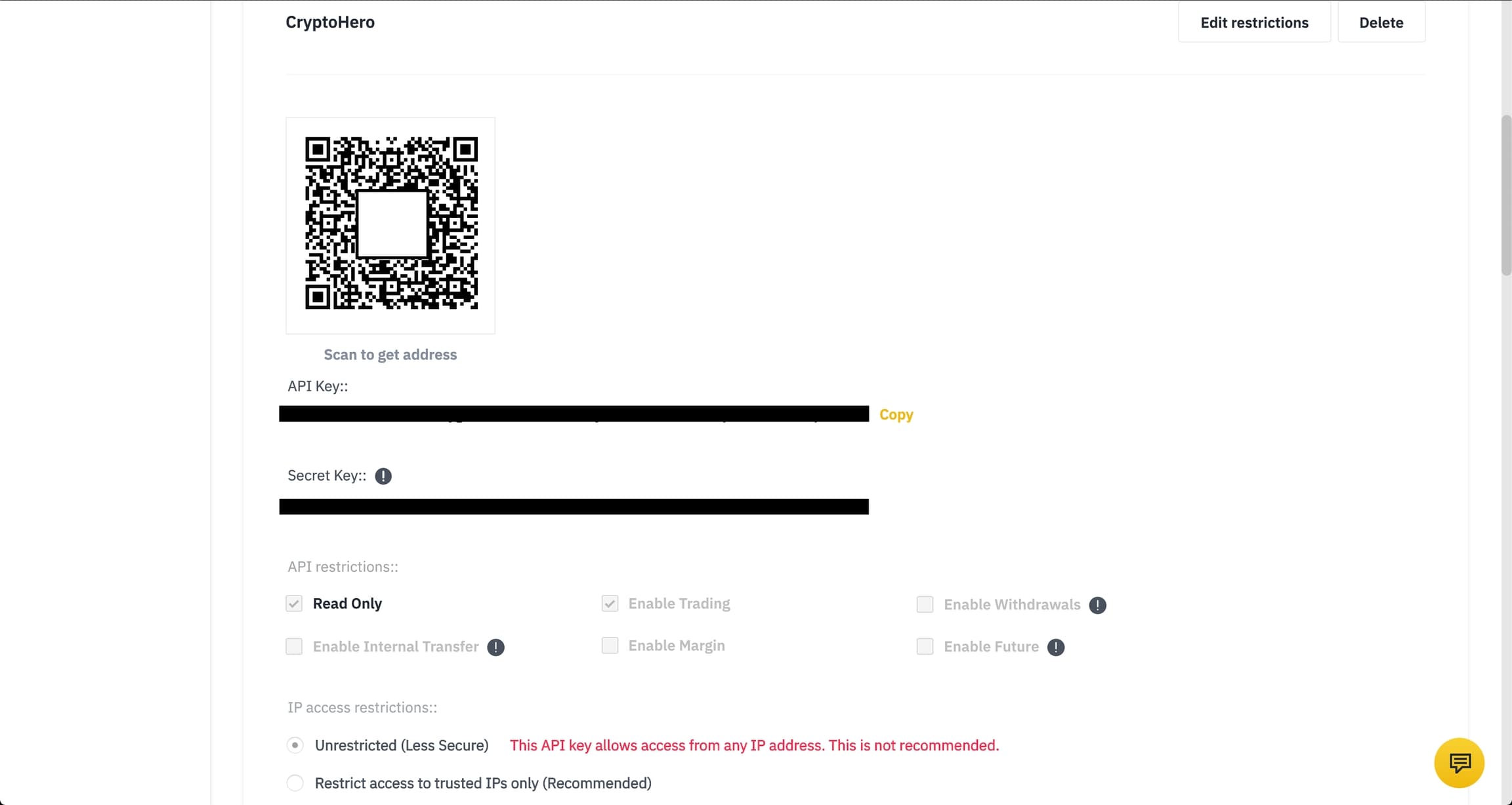
After confirming, your API Key and Secret Key will be displayed. Copy both values immediately — the Secret Key will only be shown once. Store them securely.
6
Set API Permissions
In the API Management page, edit your newly created API key and configure the following permissions:
✅ Enable Reading
✅ Enable Spot & Margin Trading (required for trading operations)
❌ DO NOT enable Withdrawals
❌ DO NOT enable Internal Transfers
⚠️ IP Restriction: If required, you can leave it unrestricted initially. The server IP addresses will be released automatically after a successful connection to 10Quant.
NEVER grant the "Withdraw" permission. This protects your funds from being transferred out. Only Reading and Spot & Margin Trading permissions are needed.
7
Enable Spot & Margin Trading
Make sure the Spot & Margin Trading permission is enabled for your API key. This is required for the trading bot to execute trades on your behalf.
8
Add API Key to 10Quant
Go to the 10Quant platform and navigate to Settings > Exchange API. Click "Add Key", select Binance as the exchange, then paste the API Key and Secret Key you just copied. Click "Verify" to confirm the connection is working.
Avisos importantes
- Never share your Secret Key with anyone.
- Never enable the "Withdraw" permission.
- Copy your Secret Key immediately — it will only be shown once.
Dicas úteis
- Use a dedicated label like "10Quant" to distinguish this API key from others.
- The server IP addresses will be released automatically after a successful connection.
- Make sure your Futures account is activated before creating the API key — open the Futures trading page at least once.